
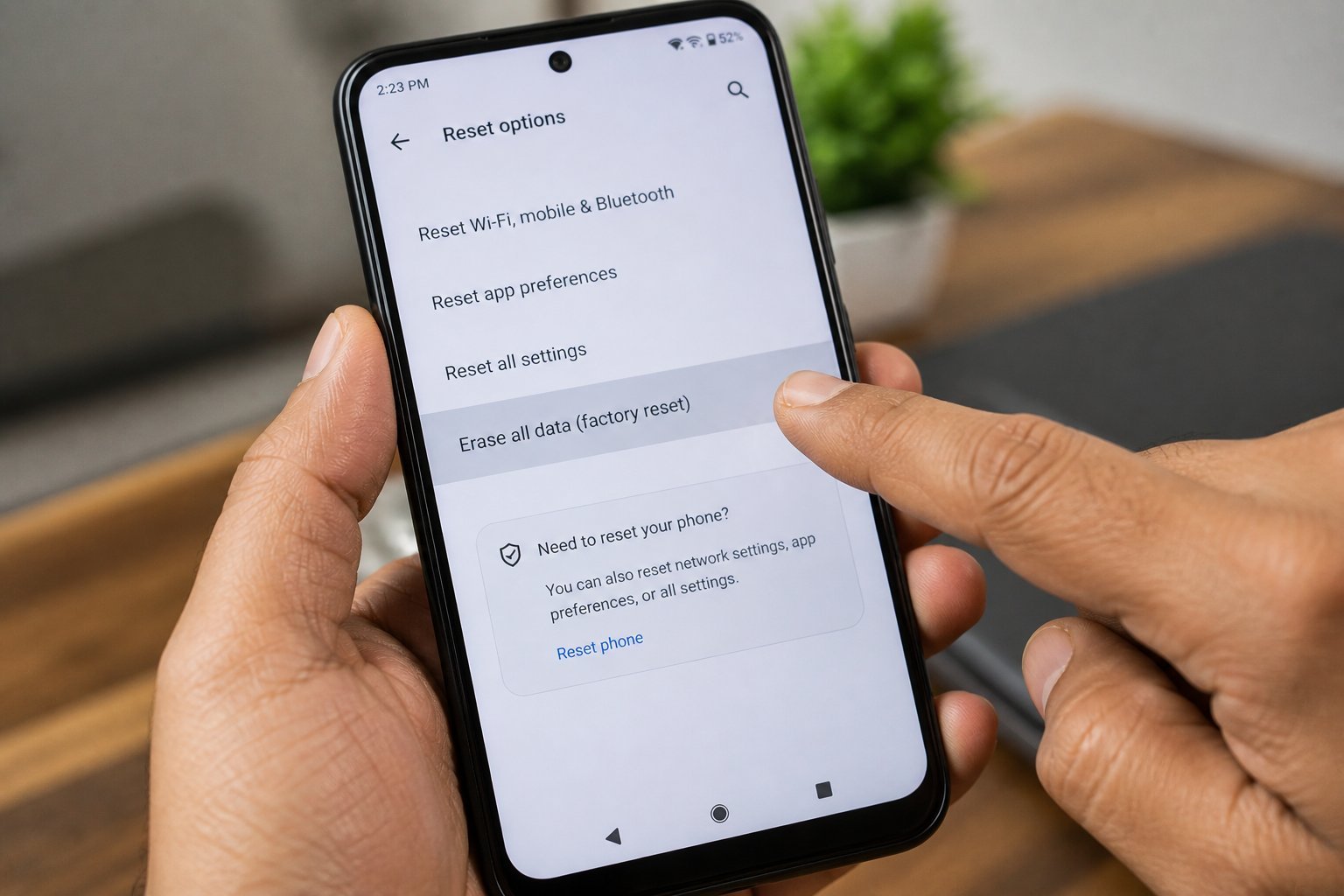
Your old phone holds your photos, passwords, banking apps, and messages. So how do I erase all data from my phone before selling it — really erase it, not just 'looks empty'?
So, how do I erase all data from my phone before selling it? Between my own experience and what I've gathered from folks who do this every day, here's the full picture.
The Bottom Line Up Front
iPhone: sign out of iCloud (Settings > [your name] > Sign Out) to remove Activation Lock, then Settings > General > Transfer or Reset > Erase All Content and Settings. Android: remove your Google account first (Settings > Accounts), then Settings > System > Reset > Factory Reset — and encrypt the phone beforehand if the option exists. Back up everything first, remove the SIM and SD card, and sign out of banking and messaging apps individually for good measure.
That's the short version. Now let's get into the parts that actually affect your wallet and your day.
For more on this, see our guide to How much does data recovery cost for a broken hard drive.
For the official word, check Apple's guide to erasing an iPhone, which lays out the details straight from the source.
How Do I Erase All Data From My Phone Before Selling It? Complete Checklist
- Back up first: iCloud/Google backup plus a manual photo backup — wipes are permanent.
- iPhone: sign out of iCloud BEFORE erasing, or Activation Lock will brick it for the buyer.
- The part nobody mentions: Android: remove your Google account before the factory reset to avoid Factory Reset Protection lock.
- Remove SIM and microSD cards — they're easy to forget and full of personal data.
- For extra peace of mind, load large junk files after wiping and reset again to overwrite old data traces.
A Concrete Example
A friend sold his phone after a 'quick reset' — but he'd forgotten to remove his Google account. The buyer couldn't activate it, left a furious review, and my friend had to remotely remove the account days later. Five minutes of checklist would've prevented all of it.
The Steps Everyone Forgets
Let me save you from the most common tech-buying regret: buying for the person you wish you were instead of the person you actually are. The pro camera you’ll “learn photography” with, the smartwatch for the workouts you’ll “definitely start,” the high-end laptop for hobbies that never materialize — we’ve all been there. Buy for your real life, not your aspirational one. Your real life is where the thing has to earn its keep.
On the flip side, don’t cheap out on the things you touch every day. The device you stare at for six hours daily, the chair you sit in, the headphones on your commute — a little extra here pays you back in comfort every single day. Splurge where the hours go, save where they don’t. That’s the whole philosophy, and it’s never steered me wrong.
Let’s talk about the DIY-versus-pro question, because it comes up constantly. The internet makes everything look easy — a ten-minute video, a $20 kit, and you’re supposedly set. Sometimes that’s genuinely true. But the videos never show you the three hours of troubleshooting, the stripped screw, or the part that arrives broken. My rule of thumb: if a failed DIY attempt would cost you more than the pro would have charged in the first place, just hire the pro. Your time has value, and so does your sanity.
That said, there’s real satisfaction in fixing something yourself, and plenty of tech tasks are genuinely beginner-friendly once you know which ones. The trick is matching the job to your actual skill level, not the skill level of the YouTuber who does it for a living. Start small, read the comments (that’s where the real warnings live), and have a plan B before you open anything up.
If that piqued your interest, you’ll like How do I fix a cracked phone screen myself at home too.
Tips From People Who’ve Done This
- This one's easy to overlook: sign out of WhatsApp, banking apps, and authenticator apps individually — resets don't always clear sessions.
- Do this before anything else: unpair the phone from your watch, car Bluetooth, and smart home devices.
- Don't skip this: take a photo of the phone's condition before shipping — protects you in disputes.
- Veterans of this stuff all say the same thing: keep the wipe confirmation or receipt until the sale is fully complete.
What Most People Get Wrong
- Here's one I see constantly: erasing without signing out of iCloud/Google first — creating an activation-locked brick. Don't let it happen to you.
- This trips up beginners all the time: forgetting the SD card full of photos still in the slot.
- Watch out for this: selling before confirming the backup actually completed. It's the kind of thing that seems fine until it isn't.
Before You Go: Quick FAQs
Is the cheapest option ever the right call?
Sometimes, but rarely for things you depend on daily. The cheapest option usually cuts something — quality, support, longevity, or all three. The sweet spot is almost always the mid-range: proven, reasonably priced, with real support behind it. Buy cheap twice and you've spent more than buying right once.
What's the biggest mistake beginners make?
Rushing. People either buy the first option they see or dive into a fix without reading the instructions twice. Slow down, compare at least three options, and read the fine print — especially around warranties, return windows, and what's actually included. Ten extra minutes of patience routinely saves hundreds of dollars.
How long does this usually take?
Honestly, it varies more than most guides admit. A straightforward case might take under an hour, while anything involving shipping, appointments, or waiting on parts can stretch to several days. My advice: ask for a realistic timeline up front, then add a buffer. If someone promises it'll be instant, get the details — 'instant' usually means 'the easy part is instant.'
The Bottom Line
Back up, sign out of everything, remove cards, then wipe. Ten minutes of checklist protects years of personal data — don't hand a stranger your digital life.
At the end of the day, this is one of those things where a little homework pays off fast.
You might also want to check out Why does my phone overheat when I charge it.
One more useful resource: Google's guide to factory reset — worth bookmarking before you make any final decisions.