
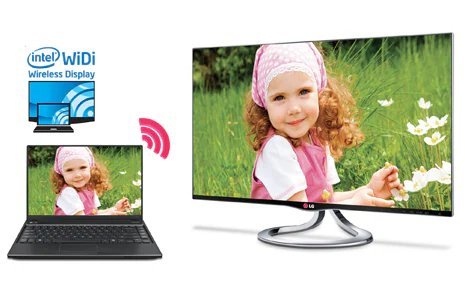
Presentation in ten minutes, or movie night with friends — either way, you need your laptop on the big screen. So how do I mirror my laptop screen to a smart TV without fumbling with settings?
So, how do I mirror my laptop screen to a smart TV? I spent a good chunk of time researching this, comparing options, and reading what real users say. Here's the honest breakdown.
The Short Answer
Windows: press Win+K, select your TV from the list (most smart TVs support Miracast). Mac: click Control Center > Screen Mirroring > choose your Apple TV or AirPlay-compatible TV. Both laptop and TV must be on the same WiFi network. If wireless fails or lags, an HDMI cable is the bulletproof fallback — a $12 cable beats twenty minutes of troubleshooting when it matters.
That's the gist, but the details matter here — they decide whether you overpay, waste time, or get it right the first time.
You might also want to check out Can I use a Bluetooth speaker with my smart TV.
For the official word, check Microsoft's official guide to wireless display, which lays out the details straight from the source.
How Do I Mirror My Laptop Screen to a Smart TV? Windows and Mac Steps
- Real talk: Windows (Win+K): opens the Cast panel — select your TV; choose 'Duplicate' to mirror or 'Extend' for a second display.
- Worth knowing: Mac (AirPlay): Control Center > Screen Mirroring > your TV. Works with Apple TV and AirPlay 2 smart TVs (2019+).
- Same WiFi network is mandatory — this causes the majority of 'TV not found' problems.
- Worth knowing: Chromecast can mirror Chrome browser tabs from any laptop via the Cast menu — handy for presentations.
- Here's the thing — HDMI cable fallback: plug in, switch TV input, done. Zero lag, zero WiFi drama — keep one in your bag.
A Concrete Example
I once spent 25 minutes fighting wireless mirroring before a client presentation. Now I carry a $12 HDMI cable everywhere. Wireless when it works, cable when it counts — I've never been embarrassed since.
Fixing Lag, No-Signal, and Other Annoyances
Timing matters more than most people realize. Tech prices follow rhythms — new models drop in predictable seasons, and the previous generation gets discounted right after. If you can wait six to eight weeks, you can often get last season’s flagship for the price of this season’s mid-range option, which is almost always the better deal. Refurbished and open-box items follow a similar pattern, flooding the market right after big launches.
The other timing trap is buying right before you actually need something. Gadgets sitting in a drawer lose value and warranty coverage simultaneously. Buy when you’re ready to use it, not when the deal looks shiny. And if a salesperson is pushing hard, that’s information too — it usually means the margin is good for them, not the value for you. Sleep on any tech purchase over a couple hundred bucks. You’ll thank yourself.
Let’s talk about the DIY-versus-pro question, because it comes up constantly. The internet makes everything look easy — a ten-minute video, a $20 kit, and you’re supposedly set. Sometimes that’s genuinely true. But the videos never show you the three hours of troubleshooting, the stripped screw, or the part that arrives broken. My rule of thumb: if a failed DIY attempt would cost you more than the pro would have charged in the first place, just hire the pro. Your time has value, and so does your sanity.
That said, there’s real satisfaction in fixing something yourself, and plenty of tech tasks are genuinely beginner-friendly once you know which ones. The trick is matching the job to your actual skill level, not the skill level of the YouTuber who does it for a living. Start small, read the comments (that’s where the real warnings live), and have a plan B before you open anything up.
Worth a read next: How do I fix a cracked phone screen myself at home.
Advice That Saves You Headaches
- It's not glamorous, but it works: close bandwidth-heavy apps during wireless mirroring — video calls plus mirroring strains WiFi.
- It's not glamorous, but it works: for movies, cast from within the app (Netflix/YouTube cast button) instead of mirroring the whole screen.
- A small thing that makes a big difference — update your TV's firmware; manufacturers steadily improve wireless display support.
- Veterans of this stuff all say the same thing: if the TV doesn't appear, restart both devices — it resolves most discovery issues.
What Most People Get Wrong
- The classic blunder: assuming every smart TV supports every mirroring standard — check AirPlay vs. Miracast compatibility. I've seen this one cost people time and money more times than I can count.
- Watch out for this: trying to game over wireless mirroring; the latency makes it unplayable. It's the kind of thing that seems fine until it isn't.
- The classic blunder: forgetting to switch the TV back to its normal input afterward (we've all done it). I've seen this one cost people time and money more times than I can count.
A Few More Questions Answered
How do I know I'm getting a fair price?
Get three quotes. It's the oldest advice in the book because it works. You'll quickly see the going rate, and outliers in either direction tell you something — suspiciously cheap often means corners cut, while the priciest option isn't automatically the best. Ask what each quote includes so you're comparing apples to apples.
How long does this usually take?
Honestly, it varies more than most guides admit. A straightforward case might take under an hour, while anything involving shipping, appointments, or waiting on parts can stretch to several days. My advice: ask for a realistic timeline up front, then add a buffer. If someone promises it'll be instant, get the details — 'instant' usually means 'the easy part is instant.'
Can I do this myself, or should I get help?
It depends on your comfort level and what's at stake. Low-risk tasks with good tutorials are great DIY candidates. But if messing up would cost you the device, your data, or your warranty, that's the moment to call in someone experienced. There's no shame in it — pros exist for a reason, and their mistakes are their problem, not yours.
Wrapping It Up
Win+K or AirPlay for wireless, HDMI cable as your reliable backup. Learn both once and you'll never dread the 'can you put it on the big screen?' moment again.
You don't need to become an expert here — you just need enough to make a smart call and move on.
You might also want to check out How do I set up a smart doorbell with my existing chime.
One more useful resource: Apple's guide to AirPlay from Mac — worth bookmarking before you make any final decisions.