
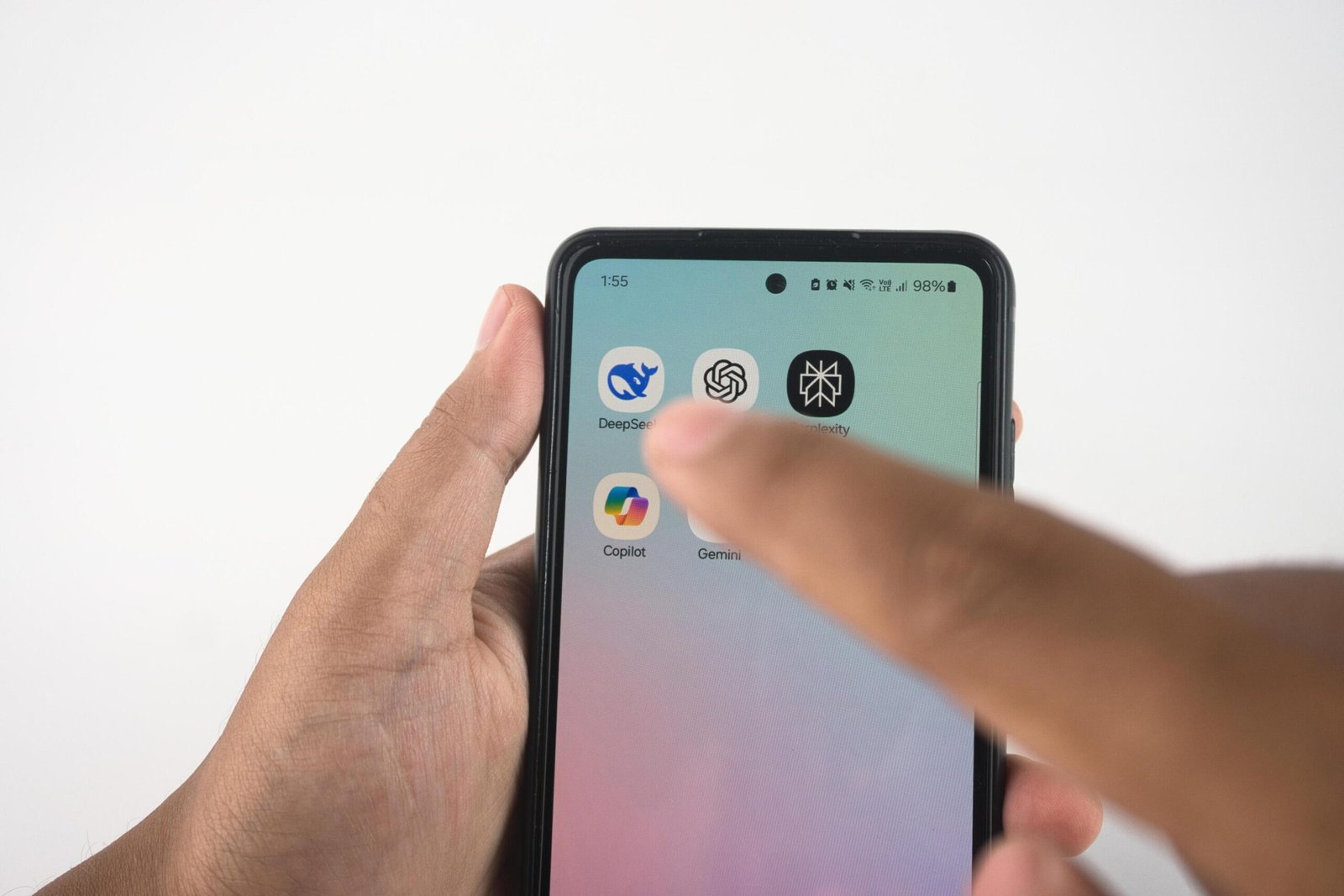
Your phone is packed with AI features you’ll never open — and one or two that quietly save you every single day. So what is the most useful AI feature on a smartphone? I asked heavy users, tested everything, and the answer isn’t the flashiest feature. It’s the one that removes the most daily friction. Here’s the ranking.
What Is the Most Useful AI Feature on a Smartphone? The Winner
Unsexy, unbeatable. AI-powered call screening (Google’s Call Screen, Apple’s Live Voicemail, Samsung’s equivalents) intercepts unknown callers, transcribes their reason in real time, and lets you accept or decline without ever picking up. For anyone getting five spam calls a day, this single feature reclaims genuine sanity — and it blocks an actual vector for fraud targeting older users. It works silently, requires zero effort, and the benefit is daily. That’s the definition of most useful.
Related and equally valuable: AI voicemail transcription and smart notification summaries. The theme: AI that protects your attention beats AI that demands it.
The Strong Contenders
- Live translation: Point your camera at a foreign menu, get instant translation. Hold a conversation across languages. For travelers, this went from sci-fi to standard in three years — and it genuinely works now.
- AI photo tools: Magic eraser, best-take faces, night mode — the computational photography suite that makes everyone’s photos better without skill. See editing photos with AI for going deeper.
- Voice assistants: Still the fastest way to set timers, send texts while driving, or get answers hands-free. The privacy trade-offs are real, but the utility is undeniable.
- Predictive text and voice typing: Modern voice dictation is shockingly accurate — many people now “type” long messages by talking. Underused and excellent.
- On-device AI summaries: Summarized notifications, webpage summaries, meeting notes — the newer Apple Intelligence / Galaxy AI / Pixel features that compress information overload.
The Overhyped (For Now)
AI-generated wallpapers, emoji, and image playgrounds: fun for a day, then forgotten. The “ask AI anything” buttons buried in settings: redundant with the chatbot apps. Early AI agents that promise to “do things for you” across apps: promising demos, unreliable reality. The pattern: AI features that create novelty fade; AI features that remove annoyance stick. Bet on the removers.
Worth noting: most of this is everyday AI you don’t notice — the best phone AI is invisible infrastructure, not a feature you “use.” Google’s support pages document the Pixel AI suite well if you want to audit what your phone can actually do — most users discover features years after buying the phone.
Hidden AI Settings Worth Enabling on iPhone and Android
Most phone AI ships half-configured. Here’s what to turn on (or off) for the full benefit.
iPhone (Apple Intelligence-capable): Settings → Apple Intelligence & Siri — enable notification summaries (choose which apps; start with Messages and Mail), try the writing tools (select text → Writing Tools → proofread/rewrite), and explore Visual Intelligence via Camera Control. Turn on Live Voicemail (Settings → Phone) if you haven’t — it’s the iPhone’s spam-filtering crown jewel. In Accessibility → Live Captions, enable system-wide transcription — brilliant for videos in quiet places.
Android (Pixel/Galaxy): Pixel: Settings → enable Call Screen (have Google answer unknown callers), Live Translate, and Magic Editor in Photos. Turn on “Hold for Me” — Google waits on hold with customer service so you don’t have to; genuinely life-changing. Galaxy: Galaxy AI settings — enable Note Assist, Browsing Assist (webpage summaries), and Live Translate for calls. Both: check Settings → Google → “Hey Google” sensitivity if false triggers annoy you.
Both platforms: Enable voice typing in your keyboard settings (Gboard’s is excellent; iOS dictation keeps improving) and actually try it for a day. Review app-by-app AI permissions — which apps get your photos, microphone, location for “AI features” you never use? Prune aggressively. And revisit [[i:144|smart home privacy]] principles for the phone: it’s the most sensor-rich AI device you own, so its settings deserve an annual 10-minute audit. The pattern across all of it: the best phone AI is already installed, just waiting for you to switch it on. Fifteen minutes of settings, daily benefits for years. That’s the highest-ROI tech maintenance you’ll do.
Smartphone AI FAQs
Does AI drain my battery faster?
On-device AI is optimized for efficiency — the bigger battery costs are the screen and radios, not the AI features. Cloud-based AI features use data more than battery. If battery is a concern, the culprits are almost always elsewhere (screen brightness, background apps, poor signal). Don’t disable useful AI features to save 2% battery.
Can I turn off AI features I don’t want?
Mostly yes — notification summaries, writing tools, and generative features can be disabled individually in settings. You don’t have to take the bundle. Turn off what annoys you, keep what helps. The phone works fine as a “dumb” smartphone with just the protective AI (spam filtering, security) running.
Will AI features work without internet?
On-device features (live voicemail transcription, on-device translation, photo tools) work offline. Cloud features (advanced assistants, web-dependent summaries) need connectivity. The industry trend is toward more on-device processing — better for privacy, speed, and offline use. Flagship phones lead here; budget phones lean cloud.
Getting More From What You Have
Action steps: turn on call screening and live voicemail today (settings, phone app — two minutes). Try voice typing for one full day; most converts never go back. Explore your camera’s AI modes beyond point-and-shoot. And review AI home device privacy — your phone is the most data-rich AI device you own, so its privacy settings deserve the same attention as your speaker’s. The most useful AI feature isn’t the one with the best demo. It’s the one you’ll miss when it’s gone. For most people, that’s the spam filter — silently standing between you and the scammers, all day, every day.
Making AI Work for Less-Techy Users
The best phone AI features are also the most accessible — and that’s worth sharing with the less-technical people in your life. Set up spam call screening on your parents’ phones. Enable live voicemail transcription for the friend who hates voicemail. Turn on voice typing for the grandparent who struggles with tiny keyboards. These aren’t power-user tricks; they’re quality-of-life upgrades hiding in settings menus. The most useful AI feature is the one someone actually uses — and sometimes they just need someone to switch it on for them.