
You deleted the wrong album. Your stomach is in freefall. So how do I recover deleted photos from my Android phone — is there any hope, or are they gone forever?
So, how do I recover deleted photos from my Android phone? After looking at the options, the prices, and what people actually experience, here's my straightforward take.
The Honest Answer
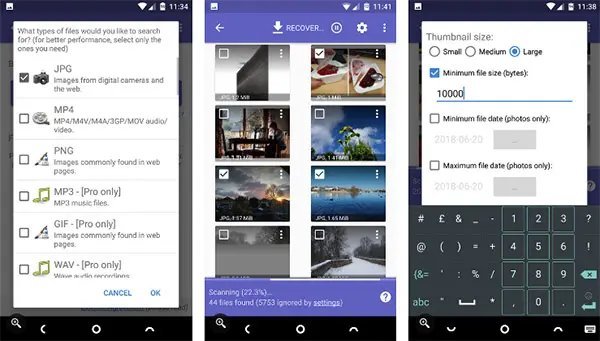
Check the trash first: Google Photos keeps deleted photos for 30 days (Library > Trash), and Samsung Gallery has its own 30-day Recycle Bin. If they're there, one tap restores them. If you use cloud backup, check the cloud trash too — it often holds files longer. If nothing's in any trash and there's no backup, recovery gets difficult: stop using the phone immediately (new data overwrites deleted files) and try a reputable recovery tool like DiskDigger, though success is far from guaranteed on modern encrypted phones.
But the headline number (or simple answer) only tells part of the story. The details below are where the real decisions get made.
If that piqued your interest, you’ll like Can I use AirPods with an Android phone too.
For the official word, check Google Photos help: restore deleted photos, which lays out the details straight from the source.
How Do I Recover Deleted Photos From My Android Phone? 3 Methods
- Google Photos Trash (Library > Trash) holds deleted photos for 30 days — restore with one tap. Check here first.
- Real talk: Samsung Gallery > Recycle Bin is separate from Google Photos — check both, since photos may live in either.
- Cloud backups (Google Photos, OneDrive, Dropbox) often retain deleted files in their own trash beyond 30 days.
- If no backup exists, stop using the phone NOW — every new photo or app install can overwrite the deleted data permanently.
- Recovery apps like DiskDigger can sometimes find remnants, but modern encryption makes deep recovery unreliable.
Here’s How It Plays Out
My sister 'cleaned up' her gallery before a trip and wiped 200 vacation photos. They were sitting in Google Photos Trash the whole time — restored in two minutes. She'd spent three days panicking for nothing.
Making Sure This Never Happens Again
A quick word on security, because this is where people get burned quietly. Most tech headaches I hear about — hacked accounts, lost photos, weird charges — trace back to boring basics: reused passwords, skipped updates, no backup. It’s not exciting advice, but a password manager and two-factor authentication will protect you more than any antivirus subscription ever will. Set them up once and they just work in the background.
Backups deserve their own mention. Not “I’ll get around to it” backups — automatic ones. The 3-2-1 rule is the gold standard for a reason: three copies of anything important, on two different types of storage, with one copy offsite. Cloud plus an external drive covers most people. The day your phone takes a swim or your laptop dies, you’ll either be relieved or devastated, and the difference is entirely decided beforehand.
Here’s something the spec sheets won’t tell you: real-world performance and advertised performance are different animals. Battery life is measured in lab conditions, WiFi speeds assume you’re hugging the router, and “water resistant” comes with fine print that would make a lawyer blush. I take every manufacturer claim and mentally shave off 20–30%. If the product still looks good after that haircut, it’s probably genuinely good.
User reviews are your best friend here — but read them like a detective, not a tourist. Ignore the five-star raves and the one-star rants; the truth lives in the three-star reviews where people explain exactly what bugged them after a month of real use. Sort by “most recent” too, because firmware updates can fix or break things, and a review from two years ago might describe a product that barely exists anymore.
For more on this, see our guide to What is the best way to back up photos from my phone automatically.
Practical Tips Worth Knowing
- Veterans of this stuff all say the same thing: turn on Google Photos backup today — it makes accidental deletion a non-event.
- Do this before anything else: before any big delete session, verify your cloud backup is current.
- If you remember one tip from this list, make it this: use the 'archive' feature instead of delete for photos you're unsure about.
- Here's one that saves people real money: check all trash folders (app trash AND cloud trash) before assuming photos are gone.
Mistakes People Keep Making
- This trips up beginners all the time: emptying the trash in a panic-cleaning spree without reviewing what's in it.
- Here's a painful one: keeping the only copy of important photos on a phone with no backup. Learn from other people's mistakes on this.
- Watch out for this: installing five recovery apps that overwrite the very data you're trying to save. It's the kind of thing that seems fine until it isn't.
A Few More Questions Answered
Can I do this myself, or should I get help?
It depends on your comfort level and what's at stake. Low-risk tasks with good tutorials are great DIY candidates. But if messing up would cost you the device, your data, or your warranty, that's the moment to call in someone experienced. There's no shame in it — pros exist for a reason, and their mistakes are their problem, not yours.
What's the biggest mistake beginners make?
Rushing. People either buy the first option they see or dive into a fix without reading the instructions twice. Slow down, compare at least three options, and read the fine print — especially around warranties, return windows, and what's actually included. Ten extra minutes of patience routinely saves hundreds of dollars.
How do I know I'm getting a fair price?
Get three quotes. It's the oldest advice in the book because it works. You'll quickly see the going rate, and outliers in either direction tell you something — suspiciously cheap often means corners cut, while the priciest option isn't automatically the best. Ask what each quote includes so you're comparing apples to apples.
The Bottom Line
The trash folder saves most people — check it first. But the real fix is automatic cloud backup, which turns every future accident into a two-minute restore.
You don't need to become an expert here — you just need enough to make a smart call and move on.
Worth a read next: Is cloud storage better than an external hard drive for family photos.
One more useful resource: Samsung's official gallery support — worth bookmarking before you make any final decisions.