Building your own gaming PC is one of those projects that looks intimidating from the outside and feels inevitable from the inside — like assembling adult LEGO where the finished toy plays Cyberpunk at 144 frames per second. The rewards are real: more performance per dollar than any prebuilt, complete control over every component, easy future upgrades, and the deep satisfaction of diagnosing your own machine. In 2026, with component compatibility better documented than ever and a thousand video guides for every step, there’s never been a better time for a beginner to build. This guide walks you through the entire process: choosing parts, avoiding the classic mistakes, and assembling with confidence.
Why build instead of buy in 2026
The value proposition hasn’t changed: a self-built PC typically delivers 15–25% more performance per dollar than an equivalent prebuilt, because you’re not paying for assembly, branding, and the manufacturer’s margin. You also control component quality — prebuilts notoriously cheap out on the parts buyers don’t check: the power supply, the motherboard, the RAM speed, the SSD. When you build, every component is your choice, which means no mystery-meat power supply waiting to fail spectacularly.
Upgradability is the quiet superpower. A well-planned build lets you swap the GPU in three years, add RAM, or upgrade storage without replacing the machine — extending its life to 6–8 years. And the knowledge compounds: once you’ve built one PC, you can diagnose, repair, and upgrade any computer with confidence. That skill pays for itself many times over.
Planning your build: budget tiers that make sense
Set your budget before browsing parts, because the options are infinite. In 2026, sensible tiers look like this: $700–900 gets a strong 1080p machine (great for esports and most AAA titles at medium-high settings); $1,000–1,400 is the sweet spot for high-refresh 1080p and entry 1440p gaming; $1,500–2,000 buys excellent 1440p high-refresh performance; beyond $2,000 you’re chasing 4K and diminishing returns. Include peripherals in your math if you need them — monitor, keyboard, mouse, and Windows license can add $300–500 that beginners forget to budget.
Use PCPartPicker (the essential free tool) to assemble your list: it checks compatibility automatically, tracks prices across retailers, and flags issues like physical clearance problems. Build your list there before buying anything — it’s the difference between a smooth build and a return-shipping saga.
Choosing components: what actually matters
GPU first, always — it determines gaming performance more than everything else combined. Allocate 35–45% of your budget here. In 2026, the mid-range (NVIDIA RTX 4060-class and AMD equivalents) dominates the value conversation for 1080p/1440p. CPU second: a modern 6-core processor handles gaming beautifully; don’t overspend here unless you also do video editing or streaming. The Energy Star program’s efficiency data is worth checking — efficient components run cooler, quieter, and cheaper.
Motherboard: match the socket to your CPU, ensure it has the features you need (Wi-Fi if you need it, enough M.2 slots), and don’t pay for overclocking features you won’t use. RAM: 16GB of DDR5 is the 2026 baseline; speed matters modestly (aim for the sweet-spot spec, not the exotic). Storage: a 1TB NVMe SSD minimum — games are enormous now, and the difference between SSD and HDD storage is the single most noticeable upgrade in computing. Add a big HDD later for bulk storage if needed.
The parts beginners get wrong
Three components cause most beginner pain. The power supply: never cheap out here. A failing PSU can destroy every other component. Buy a reputable 80+ Bronze or better unit with 100–150W headroom above your estimated draw, from a known manufacturer. The case: ensure GPU length clearance, CPU cooler height clearance, and decent airflow — a beautiful case that cooks your components is a bad case. Check both with PCPartPicker’s filters.
The CPU cooler: stock coolers are adequate for non-overclocked builds, but a $30–40 tower air cooler runs dramatically quieter and cooler — one of the best value upgrades in PC building. Thermal paste application terrifies beginners unnecessarily: a pea-sized dot in the center, let the cooler spread it. You’ll be fine.
On RAM, there’s persistent confusion about how much matters — read up on whether more RAM is worth the extra cost to calibrate your spending. For desktops, 16GB remains the sweet spot; 32GB is justified for content creation, not gaming alone.
Assembly day: step by step without fear
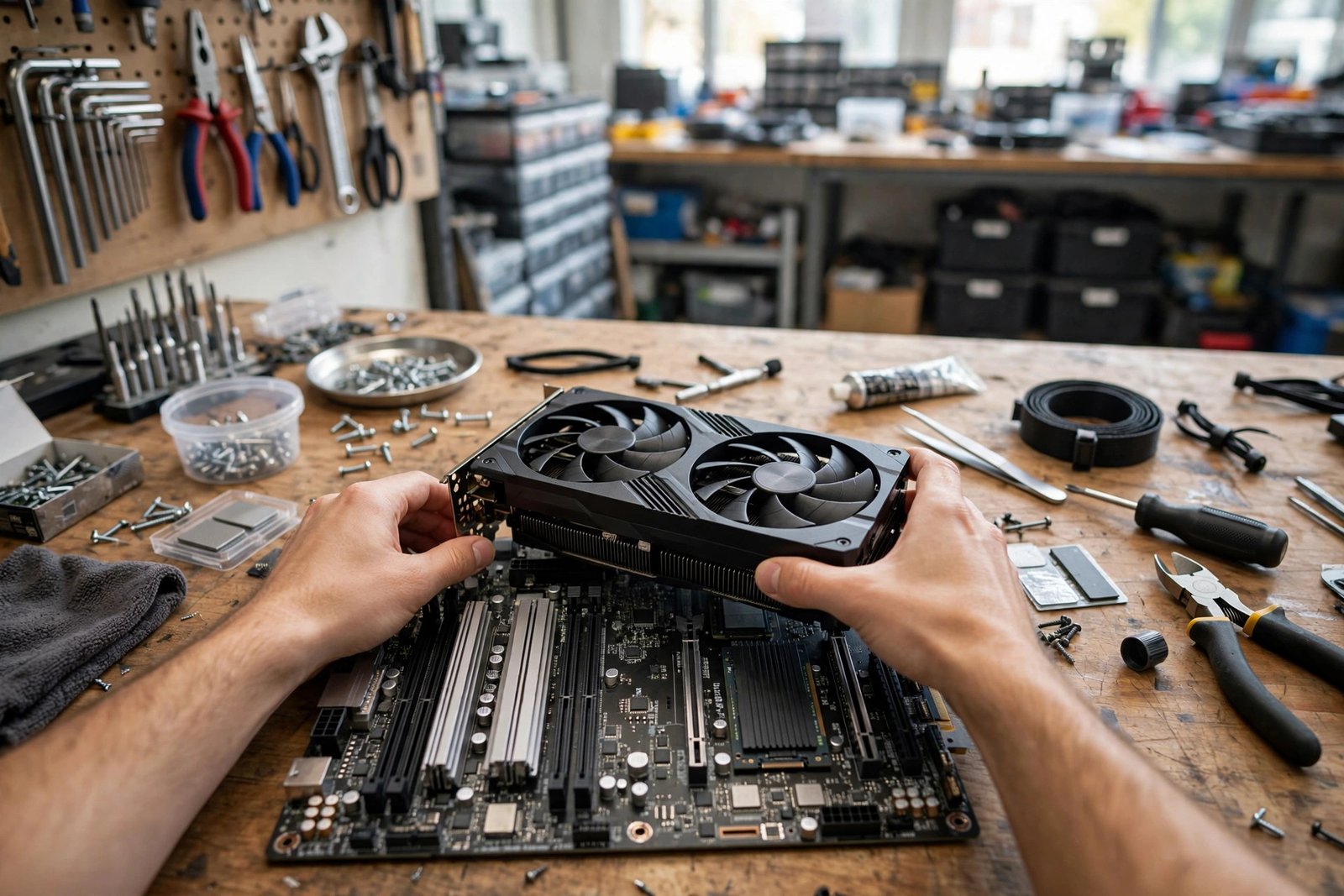
Clear a large table, grab a Phillips screwdriver (magnetic tip helps enormously), and keep your motherboard manual open — it’s the most important document in the build. The order: install CPU, RAM, and M.2 SSD on the motherboard first (outside the case, on the motherboard box — the classic “breadboard” test lets you verify it posts before mounting). Mount the CPU cooler. Install the motherboard’s I/O shield and standoffs in the case, mount the board, install the PSU and route cables, mount storage drives, install the GPU last (it’s big and blocks access), connect front-panel cables (the fiddliest step — the manual diagram is essential), then power on.
Static electricity fear is overblown but not mythical: touch the case periodically, build on a hard surface, and skip the wool sweater. If it doesn’t boot, don’t panic — 90% of first-boot failures are a loose cable, RAM not fully seated (it takes more force than expected), or the PSU switch being off. The FTC’s guidance on warranties is reassuring here: individual component warranties protect you if a part is genuinely defective.
First boot, BIOS, and software
On first successful boot, enter the BIOS/UEFI: enable XMP/EXPO for your RAM (it won’t run at advertised speed otherwise — the most common free-performance mistake), set your boot drive priority, and check that all components are detected. Install Windows (or Linux) from a USB drive, then install drivers in order: chipset first, then GPU, then everything else — get GPU drivers from NVIDIA/AMD directly, not Windows Update.
Then the fun part: install your monitoring software, run a stress test to verify stability and temperatures, update everything, and install Steam. Take a moment to admire the machine you built with your own hands. Then immediately lose three hours to “just testing” a game.
Conclusion
Building a gaming PC as a beginner in 2026 comes down to: set a realistic budget, prioritize the GPU, use PCPartPicker for compatibility, never cheap out on the power supply, follow the assembly order patiently, and enable XMP on first boot. The process takes an afternoon, the knowledge lasts a lifetime, and the machine outperforms anything prebuilt at the price. Thousands of first-timers build successfully every week — with this guide and a free Saturday, you’re next.
Frequently Asked Questions
How much does it cost to build a gaming PC in 2026?
$700–900 for strong 1080p gaming, $1,000–1,400 for the sweet spot (high-refresh 1080p/entry 1440p), $1,500–2,000 for excellent 1440p. Add $300–500 if you also need monitor, keyboard, mouse, and OS.
Is it hard to build a PC for the first time?
No — it’s adult LEGO with a manual. Most first builds take 3–5 hours following a video guide. The parts only fit one way, and PCPartPicker prevents compatibility mistakes before you buy.
What tools do I need to build a PC?
A Phillips-head screwdriver (magnetic tip recommended) is 95% of it. Add zip ties for cable management and your motherboard manual. That’s the complete toolkit.
Should I build or buy a prebuilt gaming PC?
Build for 15–25% better value, component control, and upgradeability. Buy prebuilt if you need a warranty on the whole system, want zero hassle, or find a genuine sale that erases the price gap.