
Before you spend $800 on a new machine, hear me out: how can I make my old computer run faster without buying a new one? The answer is usually cheaper than you think.
So, how can I make my old computer run faster without buying a new one? I've dug into this pretty thoroughly, talked to people who deal with it daily, and run the numbers myself. Here's what I found.
The Bottom Line Up Front
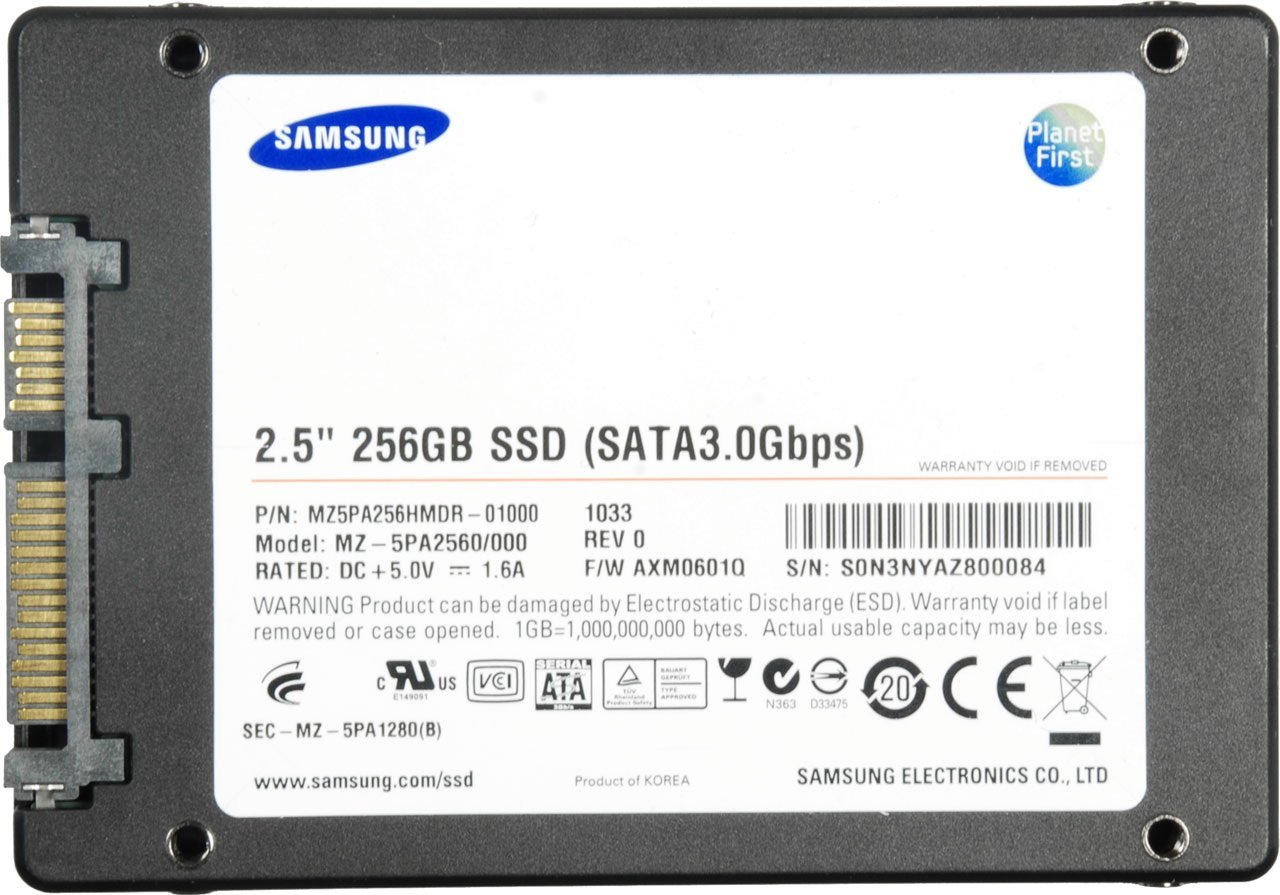
The transformative upgrade is an SSD: $40–$60 turns a sluggish 5-year-old computer into a responsive one — boot times drop from minutes to seconds. Second: max out the RAM to at least 8GB (16GB ideal), often $25–$50 for older DDR3/DDR4. Free wins: clean reinstall of the OS, disable startup programs, and switch to lightweight software (fewer Chrome tabs helps enormously). Total cost for the full revival: often under $100 and an afternoon.
Simple enough on the surface. But once you look closer, there are a few things that can trip you up if you're not careful.
You might also want to check out How do I transfer all my photos from an old iPhone to a new one.
For the official word, check Microsoft's guide to optimizing Windows, which lays out the details straight from the source.
How Can I Make My Old Computer Run Faster Without Buying a New One?
- SSD upgrade ($40–$60): the single biggest difference — more impactful than any other change.
- RAM to 8GB minimum ($25–$50 used/new): eliminates the swapping slowdown that plagues old machines.
- Clean OS reinstall: wipes years of accumulated cruft; back up first, then enjoy that new-PC feeling.
- Reapply thermal paste if it's 5+ years old — dried paste causes overheating and CPU throttling.
- What surprised me: Lightweight Linux (like Linux Mint) can revive machines too old for modern Windows — free and fast.
Here’s How It Plays Out
My 2015 desktop was headed for recycling: 4-minute boots, constant freezing. $55 SSD + $30 used RAM + a fresh Windows install = a machine that boots in 22 seconds and handles daily work flawlessly. It's now my home office PC, two years later.
When Revival Isn't Worth It
Let’s talk about the DIY-versus-pro question, because it comes up constantly. The internet makes everything look easy — a ten-minute video, a $20 kit, and you’re supposedly set. Sometimes that’s genuinely true. But the videos never show you the three hours of troubleshooting, the stripped screw, or the part that arrives broken. My rule of thumb: if a failed DIY attempt would cost you more than the pro would have charged in the first place, just hire the pro. Your time has value, and so does your sanity.
That said, there’s real satisfaction in fixing something yourself, and plenty of tech tasks are genuinely beginner-friendly once you know which ones. The trick is matching the job to your actual skill level, not the skill level of the YouTuber who does it for a living. Start small, read the comments (that’s where the real warnings live), and have a plan B before you open anything up.
Timing matters more than most people realize. Tech prices follow rhythms — new models drop in predictable seasons, and the previous generation gets discounted right after. If you can wait six to eight weeks, you can often get last season’s flagship for the price of this season’s mid-range option, which is almost always the better deal. Refurbished and open-box items follow a similar pattern, flooding the market right after big launches.
The other timing trap is buying right before you actually need something. Gadgets sitting in a drawer lose value and warranty coverage simultaneously. Buy when you’re ready to use it, not when the deal looks shiny. And if a salesperson is pushing hard, that’s information too — it usually means the margin is good for them, not the value for you. Sleep on any tech purchase over a couple hundred bucks. You’ll thank yourself.
For more on this, see our guide to What should I look for when buying a used phone online.
Smart Moves to Make
- Here's one that saves people real money: check upgrade compatibility first — some old machines max out at 4GB RAM or lack SSD-friendly ports.
- Don't skip this: clone your old drive to the SSD instead of reinstalling if you dread setup — free tools make it easy.
- Do this before anything else: clean the dust out while you're inside; clogged fans cause the throttling that feels like slowness.
- Don't skip this: set a budget cap ($100–120); beyond that, a used newer machine is the better buy.
Common Pitfalls to Dodge
- Here's one I see constantly: spending $200 upgrading a 10-year-old machine that's fundamentally obsolete. Don't let it happen to you.
- A lot of folks upgrading RAM but keeping the spinning hard drive — the SSD matters more. — and honestly, it's an easy trap to fall into.
- This trips up beginners all the time: assuming 'old' means 'dead' without trying the $50 SSD fix first.
Quick Questions, Straight Answers
Can I do this myself, or should I get help?
It depends on your comfort level and what's at stake. Low-risk tasks with good tutorials are great DIY candidates. But if messing up would cost you the device, your data, or your warranty, that's the moment to call in someone experienced. There's no shame in it — pros exist for a reason, and their mistakes are their problem, not yours.
How long does this usually take?
Honestly, it varies more than most guides admit. A straightforward case might take under an hour, while anything involving shipping, appointments, or waiting on parts can stretch to several days. My advice: ask for a realistic timeline up front, then add a buffer. If someone promises it'll be instant, get the details — 'instant' usually means 'the easy part is instant.'
Is the cheapest option ever the right call?
Sometimes, but rarely for things you depend on daily. The cheapest option usually cuts something — quality, support, longevity, or all three. The sweet spot is almost always the mid-range: proven, reasonably priced, with real support behind it. Buy cheap twice and you've spent more than buying right once.
Here’s My Honest Take
SSD plus RAM plus a clean install revives the vast majority of slow old computers for under $100. Try that before you shop — your wallet will thank you.
Look, nobody wants to overthink this stuff. But twenty minutes of reading now beats an expensive mistake later.
You might also want to check out Is it worth buying a refurbished laptop for college.
One more useful resource: iFixit's computer repair guides — worth bookmarking before you make any final decisions.