
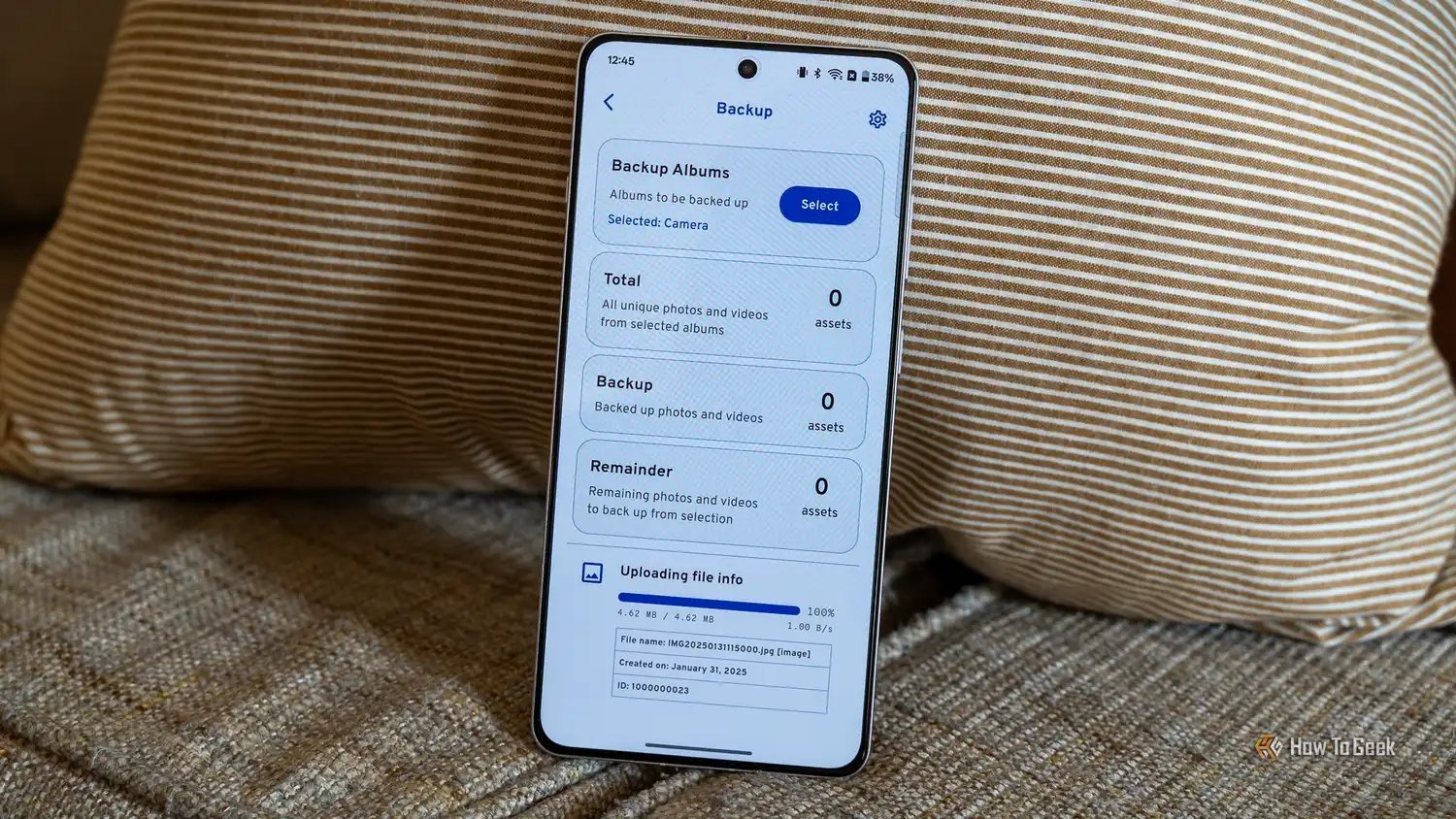
Phones get lost, stolen, and dropped in toilets with alarming regularity. So what is the best way to back up photos from my phone automatically — the kind you set once and never think about again?
So, what is the best way to back up photos from my phone automatically? Between my own experience and what I've gathered from folks who do this every day, here's the full picture.
Here’s the Deal
For iPhone users, iCloud Photos is the seamless choice — turn it on and every photo uploads automatically (free 5GB; paid plans from $0.99/month). For Android or cross-platform, Google Photos offers 15GB free and excellent search. Amazon Photos gives Prime members unlimited full-resolution photo storage, which is the best free deal going. The key: pick one, enable automatic upload on WiFi, and verify it's actually syncing.
But the headline number (or simple answer) only tells part of the story. The details below are where the real decisions get made.
If that piqued your interest, you’ll like How do I recover deleted photos from my Android phone too.
For the official word, check Google Photos help center, which lays out the details straight from the source.
What Is the Best Way to Back Up Photos From My Phone Automatically?
- iCloud Photos (iPhone): Settings > [your name] > iCloud > Photos > Sync this iPhone. Done — everything uploads on WiFi.
- Google Photos (any phone): install the app, enable Backup, and get 15GB free with best-in-class search ('show me beach photos from 2023').
- Amazon Photos: Prime members get unlimited full-resolution photo storage — the most generous free option available.
- Set uploads to WiFi-only to avoid burning through mobile data on a big initial backup.
- Verify the backup worked: log into the cloud service on a computer and confirm recent photos appear.
A Quick Real-World Example
My phone was stolen on vacation in 2024. Because Google Photos had been backing up automatically, I lost the phone but kept all 400 vacation photos. That one toggle was worth more than the phone itself.
The Backup Mistakes That Cost People Their Photos
One thing I’ve learned after years of dealing with gadgets: the sticker price is never the whole story. There’s always a second layer — the accessories you didn’t know you needed, the subscription that seemed optional until it wasn’t, the “free” service that costs you in data. When you’re sizing up any tech decision, add about 15–20% to whatever number you’re looking at for the stuff around the edges. Cables, cases, adapters, cloud storage, the apps you’ll inevitably pay for — it adds up fast. People who budget for the extras never feel blindsided. People who don’t end up annoyed at a purchase they otherwise liked.
And here’s the part that actually matters more than specs: how long will this thing realistically serve you? A cheaper option that needs replacing in eighteen months is more expensive than the pricier one that lasts four years. I always ask myself what my future self, two years from now, will wish I’d bought. That one question has saved me from more bad tech purchases than any review site ever has.
A quick word on security, because this is where people get burned quietly. Most tech headaches I hear about — hacked accounts, lost photos, weird charges — trace back to boring basics: reused passwords, skipped updates, no backup. It’s not exciting advice, but a password manager and two-factor authentication will protect you more than any antivirus subscription ever will. Set them up once and they just work in the background.
Backups deserve their own mention. Not “I’ll get around to it” backups — automatic ones. The 3-2-1 rule is the gold standard for a reason: three copies of anything important, on two different types of storage, with one copy offsite. Cloud plus an external drive covers most people. The day your phone takes a swim or your laptop dies, you’ll either be relieved or devastated, and the difference is entirely decided beforehand.
Related reading: How do I transfer all my photos from an old iPhone to a new one.
Advice That Saves You Headaches
- Do this before anything else: enable backup today, not 'later' — later is exactly when phones get lost.
- Do this before anything else: keep two backups for irreplaceable photos: cloud plus an external drive or computer.
- Here's one that saves people real money: check monthly that syncing is actually working — paused uploads from full storage are a silent killer.
- Here's one that saves people real money: download your full library once a year as an extra archive; cloud services can change terms.
Mistakes Worth Avoiding
- Here's one I see constantly: assuming photos are backed up because you have the app installed — the backup toggle must be ON. Don't let it happen to you.
- Here's a painful one: letting cloud storage fill up, which silently pauses all new backups. Learn from other people's mistakes on this.
- Here's a painful one: relying only on a phone that could be lost, with zero copies anywhere else. Learn from other people's mistakes on this.
A Few More Questions Answered
What's the biggest mistake beginners make?
Rushing. People either buy the first option they see or dive into a fix without reading the instructions twice. Slow down, compare at least three options, and read the fine print — especially around warranties, return windows, and what's actually included. Ten extra minutes of patience routinely saves hundreds of dollars.
Is the cheapest option ever the right call?
Sometimes, but rarely for things you depend on daily. The cheapest option usually cuts something — quality, support, longevity, or all three. The sweet spot is almost always the mid-range: proven, reasonably priced, with real support behind it. Buy cheap twice and you've spent more than buying right once.
How long does this usually take?
Honestly, it varies more than most guides admit. A straightforward case might take under an hour, while anything involving shipping, appointments, or waiting on parts can stretch to several days. My advice: ask for a realistic timeline up front, then add a buffer. If someone promises it'll be instant, get the details — 'instant' usually means 'the easy part is instant.'
Wrapping It Up
Pick one service, flip the automatic backup switch, and verify it once. Five minutes of setup protects years of memories — there's no excuse to skip it.
At the end of the day, this is one of those things where a little homework pays off fast.
Related reading: How can I free up storage on my iPhone without deleting photos.
One more useful resource: Apple's iCloud Photos guide — worth bookmarking before you make any final decisions.