
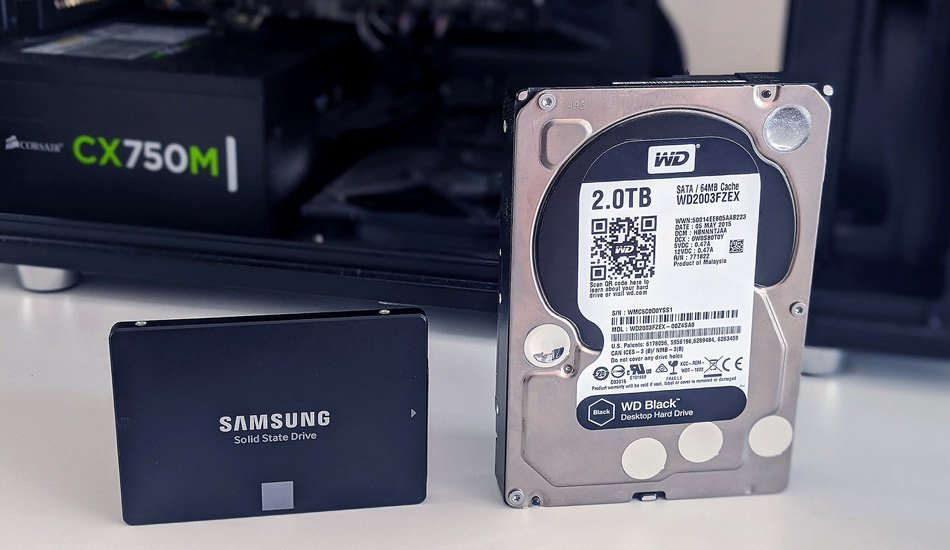
Shopping for a laptop or external drive, you'll see two cryptic letters everywhere: SSD and HDD. So what is the difference between SSD and HDD storage — and does it actually matter for you?
So, what is the difference between SSD and HDD storage? I've dug into this pretty thoroughly, talked to people who deal with it daily, and run the numbers myself. Here's what I found.
What You Actually Need to Know
An HDD (hard disk drive) stores data on spinning magnetic platters — it's cheap per gigabyte but slow and fragile. An SSD (solid-state drive) uses flash memory with no moving parts — it's dramatically faster (5–20x), silent, and more durable, but costs more per gigabyte. For your main drive, SSD is the only sensible choice in 2026; HDDs still make sense for cheap bulk backup storage.
Simple enough on the surface. But once you look closer, there are a few things that can trip you up if you're not careful.
Worth a read next: How can I free up storage on my iPhone without deleting photos.
For the official word, check Microsoft's guidance on storage for Windows PCs, which lays out the details straight from the source.
What Is the Difference Between SSD and HDD Storage? Explained Simply
- Real talk: Speed is the headline: SSDs boot computers in seconds while HDDs can take minutes — the difference feels like night and day.
- SSDs have no moving parts, so they survive drops and bumps that would kill a spinning hard drive.
- HDDs win on price per terabyte — a 4TB HDD costs about the same as a 1TB SSD, making them great for archiving.
- Pay attention here: SSDs are silent and use less power, which means longer laptop battery life and zero whirring noise.
- Real talk: For gaming and creative work, an SSD isn't optional anymore — modern games and apps assume fast storage.
What This Looks Like in Practice
I cloned my dad's old laptop from its HDD to a $50 SSD. His exact words when it booted in 20 seconds: 'Did you buy me a new computer?' Same computer, same files — just a different drive.
Choosing the Right Drive for the Job
One thing I’ve learned after years of dealing with gadgets: the sticker price is never the whole story. There’s always a second layer — the accessories you didn’t know you needed, the subscription that seemed optional until it wasn’t, the “free” service that costs you in data. When you’re sizing up any tech decision, add about 15–20% to whatever number you’re looking at for the stuff around the edges. Cables, cases, adapters, cloud storage, the apps you’ll inevitably pay for — it adds up fast. People who budget for the extras never feel blindsided. People who don’t end up annoyed at a purchase they otherwise liked.
And here’s the part that actually matters more than specs: how long will this thing realistically serve you? A cheaper option that needs replacing in eighteen months is more expensive than the pricier one that lasts four years. I always ask myself what my future self, two years from now, will wish I’d bought. That one question has saved me from more bad tech purchases than any review site ever has.
Here’s something the spec sheets won’t tell you: real-world performance and advertised performance are different animals. Battery life is measured in lab conditions, WiFi speeds assume you’re hugging the router, and “water resistant” comes with fine print that would make a lawyer blush. I take every manufacturer claim and mentally shave off 20–30%. If the product still looks good after that haircut, it’s probably genuinely good.
User reviews are your best friend here — but read them like a detective, not a tourist. Ignore the five-star raves and the one-star rants; the truth lives in the three-star reviews where people explain exactly what bugged them after a month of real use. Sort by “most recent” too, because firmware updates can fix or break things, and a review from two years ago might describe a product that barely exists anymore.
Related reading: Is cloud storage better than an external hard drive for family photos.
Small Things That Make a Big Difference
- This one's easy to overlook: always choose SSD for the drive your operating system lives on — that's where speed matters most.
- It's not glamorous, but it works: a 500GB–1TB SSD plus a big cheap HDD for backups is the ideal combo for most people.
- Do this before anything else: check whether your laptop supports NVMe SSDs — they're even faster than older SATA SSDs.
- It's not glamorous, but it works: when buying external storage, SSDs are worth it if you'll carry the drive around daily.
Don’t Learn These the Hard Way
- A lot of folks buying a new laptop with a spinning HDD in 2026 — it'll feel slow on day one. — and honestly, it's an easy trap to fall into.
- A lot of folks assuming all SSDs are equal; cheap ones without DRAM can slow down badly when full. — and honestly, it's an easy trap to fall into.
- Watch out for this: defragmenting an SSD like an old hard drive — it doesn't help and wears the drive out. It's the kind of thing that seems fine until it isn't.
Things People Also Ask
Is the cheapest option ever the right call?
Sometimes, but rarely for things you depend on daily. The cheapest option usually cuts something — quality, support, longevity, or all three. The sweet spot is almost always the mid-range: proven, reasonably priced, with real support behind it. Buy cheap twice and you've spent more than buying right once.
How do I know I'm getting a fair price?
Get three quotes. It's the oldest advice in the book because it works. You'll quickly see the going rate, and outliers in either direction tell you something — suspiciously cheap often means corners cut, while the priciest option isn't automatically the best. Ask what each quote includes so you're comparing apples to apples.
Can I do this myself, or should I get help?
It depends on your comfort level and what's at stake. Low-risk tasks with good tutorials are great DIY candidates. But if messing up would cost you the device, your data, or your warranty, that's the moment to call in someone experienced. There's no shame in it — pros exist for a reason, and their mistakes are their problem, not yours.
The Bottom Line
SSD for speed, HDD for cheap bulk storage. If your computer still runs on a spinning drive, upgrading to an SSD is the single best performance upgrade you can make.
At the end of the day, this is one of those things where a little homework pays off fast.
If that piqued your interest, you’ll like How much does it cost to replace a phone screen at a repair shop too.
One more useful resource: the FTC's consumer tech advice — worth bookmarking before you make any final decisions.